Add students
Add students to your groups
Add students
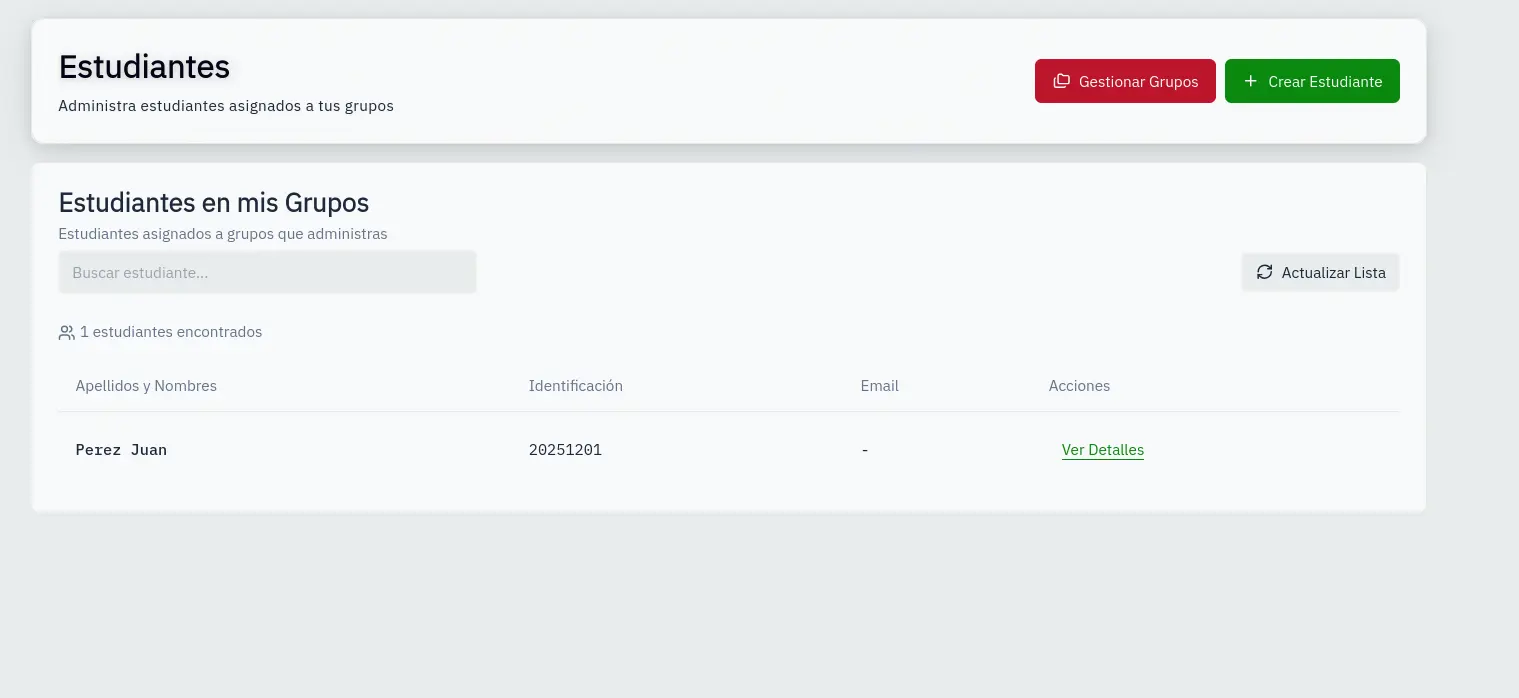
You can add students manually or by importing from Excel.
Access students
- On the group card, click the Students icon
- Or navigate to Groups → select a group → Students
Add manually
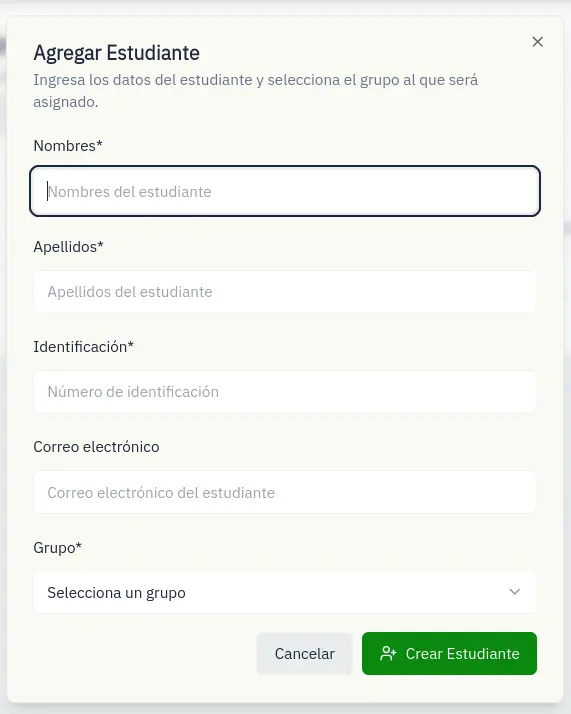
- Click Add Student
- Search by name or identification
- Select the student from results
- Or create a new one with:
- First Names: Student's first names
- Last Names: Student's last names
- Identification: ID number
- Email: Email address (optional)
Import from Excel
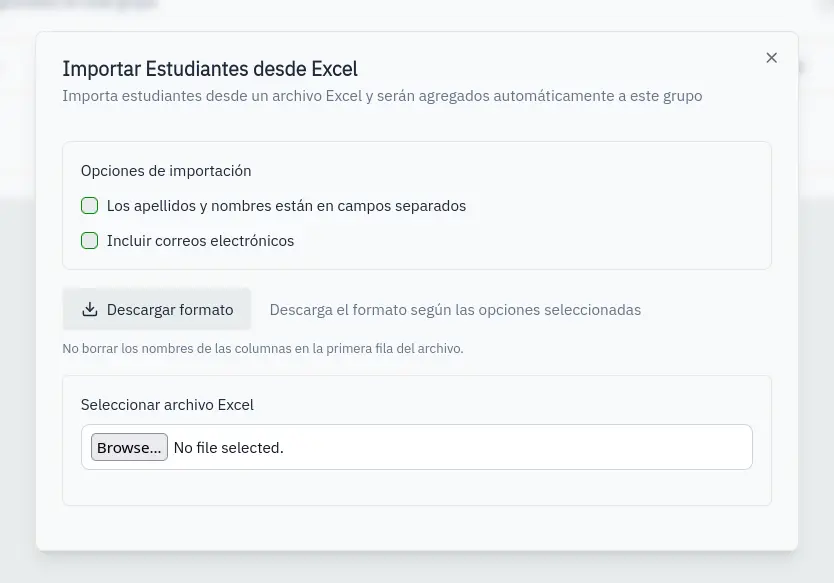
- Click Import from Excel
- Configure options:
- Separate names: Separate columns for first and last names
- Include emails: Add email column
- Download the template
- Fill the template with data
- Upload the file
- Review the preview
- Click Import
Remove student
Click the X next to a student to remove them from the group.
Students can belong to multiple groups. Removing from one group doesn't delete them from the system.