Start scanning
How to access the exam scanner
Start scanning
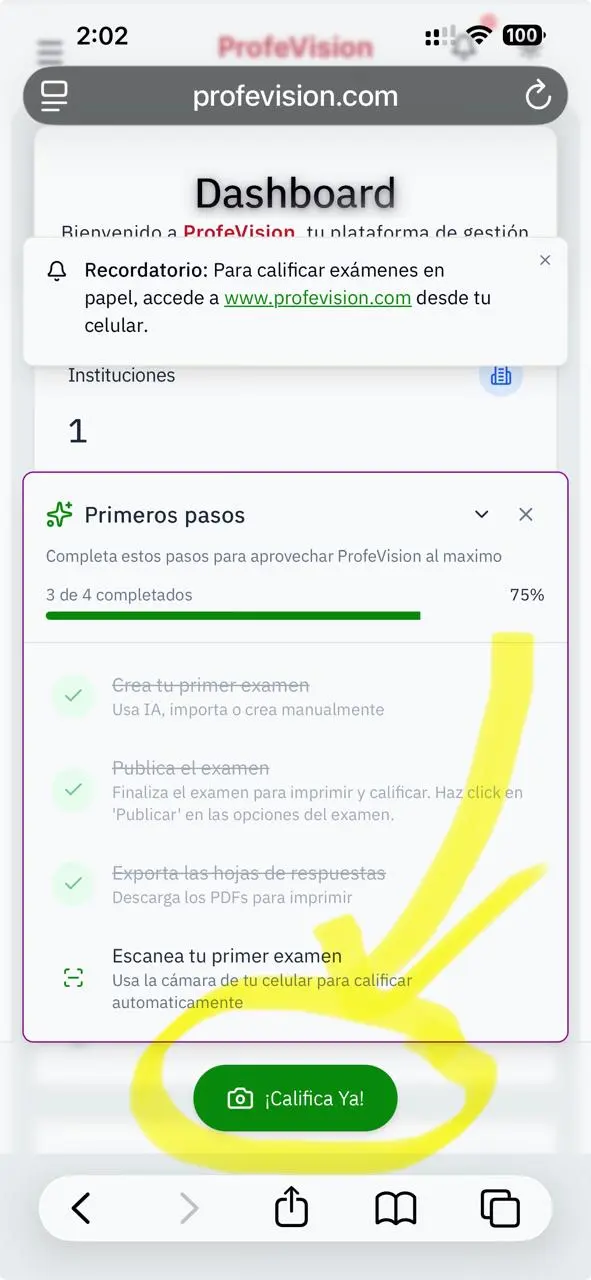
Access the scanner from anywhere in the dashboard.
Floating button
The scan button appears in the bottom-right corner of your screen.
Check limits
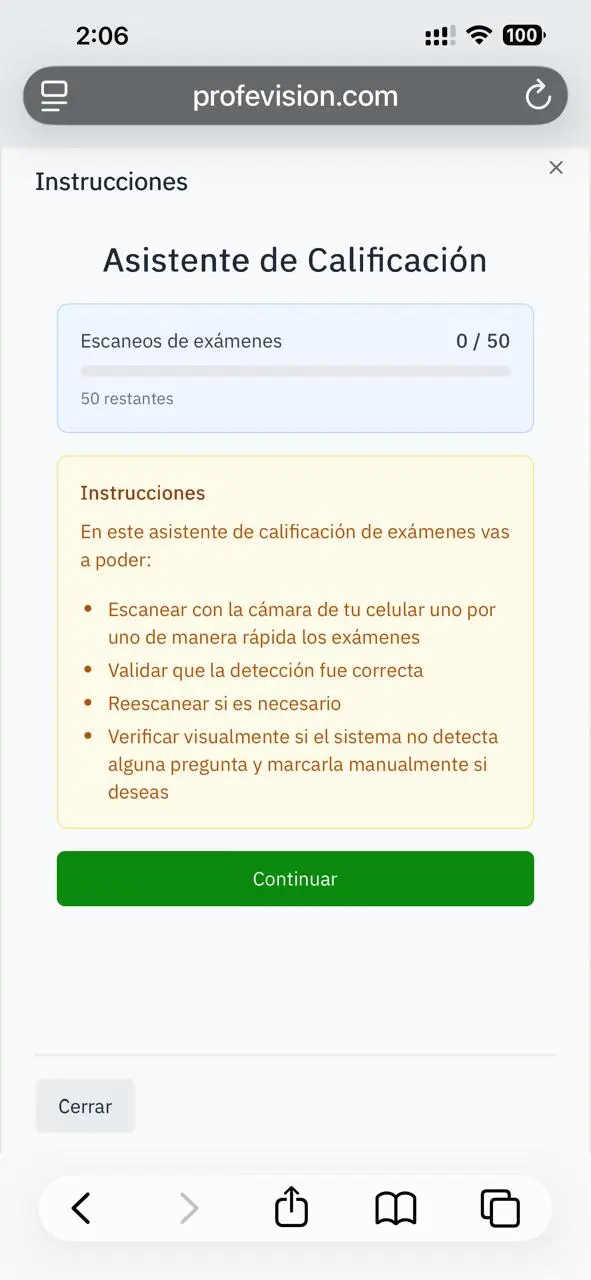
Before scanning, the system verifies your quota:
- You'll see how many scans you've used
- If you reach the limit, a warning appears
- Plus users have unlimited scans
Instructions screen
When starting you'll see instructions with tips:
- Make sure you have good lighting
- Place the sheet on a flat surface
- Capture the entire sheet in the frame
- Avoid shadows and reflections
Continue
Click Continue to open the camera.
The scanner works best with the phone in landscape position.